Monday, August 17, 2020

5+ Creative Ways to Learn a New Language for Free

Learning a new language

Learning a new language is one of the best skills to acquire. Here are a few creative ways to pick up a new tongue, whether by reading, writing, or watching.

There are two popular ways to learn a language. You can use Duolingo or some of the other best free language learning apps, or you can try the language immersion methodology.

The right path is up to you, depending on your skill level in the new language. These websites and apps will help you learn or practice a language based on the way you prefer to learn.

1. Parallel Text (Web): Read a Book in Two Languages Side-by-Side

Parallel Text displays a classic novel in two languages side-by-side so you can learn to read in a new language

Parallel Text believes the best way to get better at a language is to read a favorite book in that language. So it offers a split-view reading experience, where a book is presented in the language you know, alongside the language you want to learn.

Start by choosing a language you already know (like English) and a language you want to learn or practice. Current options include Dutch, Finnish, French, German, Greek, Hungarian, Italian, Polish, Portuguese, Russian, Spanish, and Swedish.

Parallel Text will then show a list of book options available in both languages. All the books are classics whose copyrights have expired, so you can legally read it for free.

Make your selection to start reading. You can choose a Compact View to only see the translated language, or a Split View to see both languages side-by-side. It’s an excellent way to practice reading with a full translation readily available when you need it. You can also click any sentence to have it read out loud by the browser so that you aren’t guessing pronunciations.

2. Fluency Pending (Web): How to Set Up a Language Learning Notebook

Fluency Pending teaches how to set up a free language learning notebook to write as you learn a new language and commit things to memory

Productivity experts, memory experts, and teachers all say that writing things down helps you remember them better. You actually need to put pen to paper, and that act ingrains what you learned. To that end, here’s how to set up a language learning notebook.

Writer and language-learner Elzette Wilkinson shares how she set up and organizes her own notebook to learn and practice a new tongue. You can use any type of notebook in this method, and you’ll need a few highlighters and tabs. She says you can also use it in a digital notebook app, but use something with a stylus so that you’re physically writing, not typing.

Broadly, Wilkinson breaks down the notebook into a schedule, habit, and goals to set your patterns, and worksheets for practice. For example, a vocabulary worksheet will have spaces for a new word, its meaning, its memory prompt, synonyms and antonyms, and how to use it in a sentence. Fill everything in diligently to commit it to memory.

The whole article on Fluency Pending will explain how to set up other spaces, like diary entry or journaling, themed pages, resources, etc. You might also want to add in tips from other language notebook guides like Not So Translation’s language hacks and Michael Sunderland’s notebook.

3. Simply Learn Languages (Android, iOS): Learn Common Travel Phrases in Any Language

Simply Learn Languages is a fantastic app to learn the basic words and phrases that a traveler will need in a foreign country. Download the language to use it offline, and start learning it through flashcards and quizzes.

Start with beginner phrases and basic sentences for travelers, across categories like numbers, directions, emergencies, accommodation, etc. You can unlock further phrases (advanced traveler and expat) for a price. At any point, you can review what you learned through quizzes.

Each Simply Learn Language category depicts the phrase in English script as well as the language’s original script. It also pronounces the phrase in a local person’s accent, so you can hear what it’ll sound like. Of course, a smart traveler could also use the app to quickly communicate with a foreigner.

Right now, the iOS version isn’t available, but you can download the Simply Learn app for any specific language for free. This will give you the same features (albeit with ads), and you can unlock more phrases and remove ads by paying.

Download: Simply Learn Languages for Android | iOS (Free)

4. Fluent (Chrome): Learn Languages While Browsing the Web

Fluent is a Chrome extension that translates random words in any web page so you can learn French while you browse the web

Fluent is a Chrome extension that changes a few words on each page to help you learn a new language. Most of the page stays in English, but you’ll find a few highlighted words in French. Hover over them to learn the English meaning, and click to hear the pronunciation. You can even save words to your favorites.

At any point, you can toggle Fluent to pause or resume it, including a timed pause. You can also tweak settings so that the extension doesn’t activate on important websites like Google Docs or your online banking account. You can also manually whitelist some websites. Choose a difficulty level to tell Fluent how aggressively it should translate words.

At the moment, Fluent only teaches English users how to read and write French. But the team is looking to add new languages, and you can vote to choose the next language. It’s a fantastic app that teaches you to read through language immersion on the web.

Download: Fluent for Chrome (Free)

If you don’t want to learn French, there are a few other similar apps. Kypsis Language Immersion supports the widest variety of languages. Its settings also let you choose the difficulty level, and how many websites to apply it to. The interface isn’t as nice as Fluent, but it gets the job done.

Download: Kypsis Language Immersion for Chrome (Free)

5. Most Common Words (Web): Learn the 1,000 Most Common Words of Any Language

Most Common Words teaches you the 1000 most common words in any language

Most Common Words (MCW) reckons that instead of learning a new language start to finish, you should learn its most common words. It’s actually not a bad idea if you club MCW with other language-learning apps or practices.

In a flashcard format, the site teaches English language speakers the 1,000 most common words from Spanish, German, Italian, French, Japanese, Korean, Russian, and Business Chinese. “Business Chinese” is, as the name suggests, the most common words and terms used in the corporate world. Similarly, for Chinese speakers, it also teaches Business English.

Watch a Movie You Like, in a New Language

One of the best ways to learn or practice a new language is to watch movies in it. But there’s a trick to that. Pick a film or TV series that you’ve already seen, not something you’re watching for the first time. When your brain is trying to learn a new language, don’t task it with other things like following the plot, figuring out the characters, and so on. Reruns help you enjoy something you are familiar with, while also learning something.

To that end, Netflix is the best service to learn a language while you binge-watch TV. There are a bunch of apps and extensions to watch Netflix and learn a language, and it’s not just reading subtitles.

Read the full article: 5+ Creative Ways to Learn a New Language for Free


from MakeUseOf
https://www.makeuseof.com/tag/creative-ways-learn-new-language-free/

Samsung Reveals Which Devices Will Get 3 Major Updates

Samsung Galaxy S20

One of the biggest issues anyone faces when choosing an Android phone is the number of updates their device will receive. Will they get one generation of major versions of the OS? Will they receive two or even three generations?

Samsung recently had its Galaxy Unpacked event, and the company announced that many of its new devices will get three generations of updates. However, it was a bit confusing which devices would get three years and which wouldn’t. Fortunately, Samsung posted on its newsroom clearing up the issue.

Which Phones Will Get 3 Generations of Updates?

If you buy a new Samsung phone in 2020, you should be good to go as far as updates are concerned.

Here’s the complete list of devices:

  • Galaxy S20 series: Galaxy S20 Ultra 5G, S20 Ultra, S20+ 5G, S20+, S20 5G, and S20
  • Galaxy S10 series: Galaxy S10 5G, S10+, S10, S10e, S10 Lite
  • Upcoming S series devices
  • Current Note 20 series: Galaxy Note 20 Ultra 5G, Note 20 Ultra, Note 20 5G, and Note 20
  • Note 10 series: Note 10+ 5G, Note10+, Note 10 5G, Note 10, and Note 10 Lite
  • Foldable devices: Galaxy Z Fold 2 5G, Z Fold 2, Z Flip 5G, Z Flip, Fold 5G, and Fold
  • Upcoming Z series devices
  • Galaxy A series: Galaxy A71 5G, A71, A51 5G, A51, and A90 5G
  • Select upcoming A series devices
  • Tablets: Galaxy Tab S7+ 5G, Tab S7+, Tab S7 5G, Tab S7, Tab S6 5G, Tab S6, and Tab S6 Lite
  • Upcoming Tab S series devices

If you own one of those devices, or you plan to, then you’re all set for three major Android updates. That applies to tablets and phones.

If you’re in the market for an affordable phone, make sure to do some research before you purchase an A series phone, as some of them won’t get three generations of updates.

Not a Fan of Bixby on Your Samsung Device?

Samsung’s personal assistant is rather divisive. Some people love it, and some hate it. If you’re not a fan of Bixby on your Samsung device, check out this handy guide that’ll show you how to disable Bixby.

Read the full article: Samsung Reveals Which Devices Will Get 3 Major Updates


from MakeUseOf
https://www.makeuseof.com/tag/samsung-3-years-updates/

You Can Now Vote for The Doodle for Google 2020 Contest

doodle for google 2020

A few months ago, Google requested submissions for the annual K-12 contest to create a Doodle that will be featured on the search engine’s home page in 2020. Now, the company has combed through all of the submissions and opened Doodle for Google 2020 voting.

While it’s too late to enter your own drawings into the contest, you can still participate by voting for the national finalists.

Doodle for Google 2020

Every year, the Doodle for Google contest comes along as one of the coolest ways for young artists to get their work in front of the entire internet. Google applies a theme to each contest, and for 2020, the company has chosen kindness.

Google originally accepted submission for Doodles until March 20th. From there, the company lumped submissions into five grade groups: K-3, 4-5, 6-7, 8-9, and 10-12.

Google Doodle 2020

Once the company took the submissions, it picked 54 state and territory winners. Now, with the help of Google users, the company will narrow it down to five National Finalists. Of those, one will go on to become the winner of the Doodle for Google 2020 contest.

Google has a page you can visit to cast your vote. It also provides a little more information on what to expect from the contest:

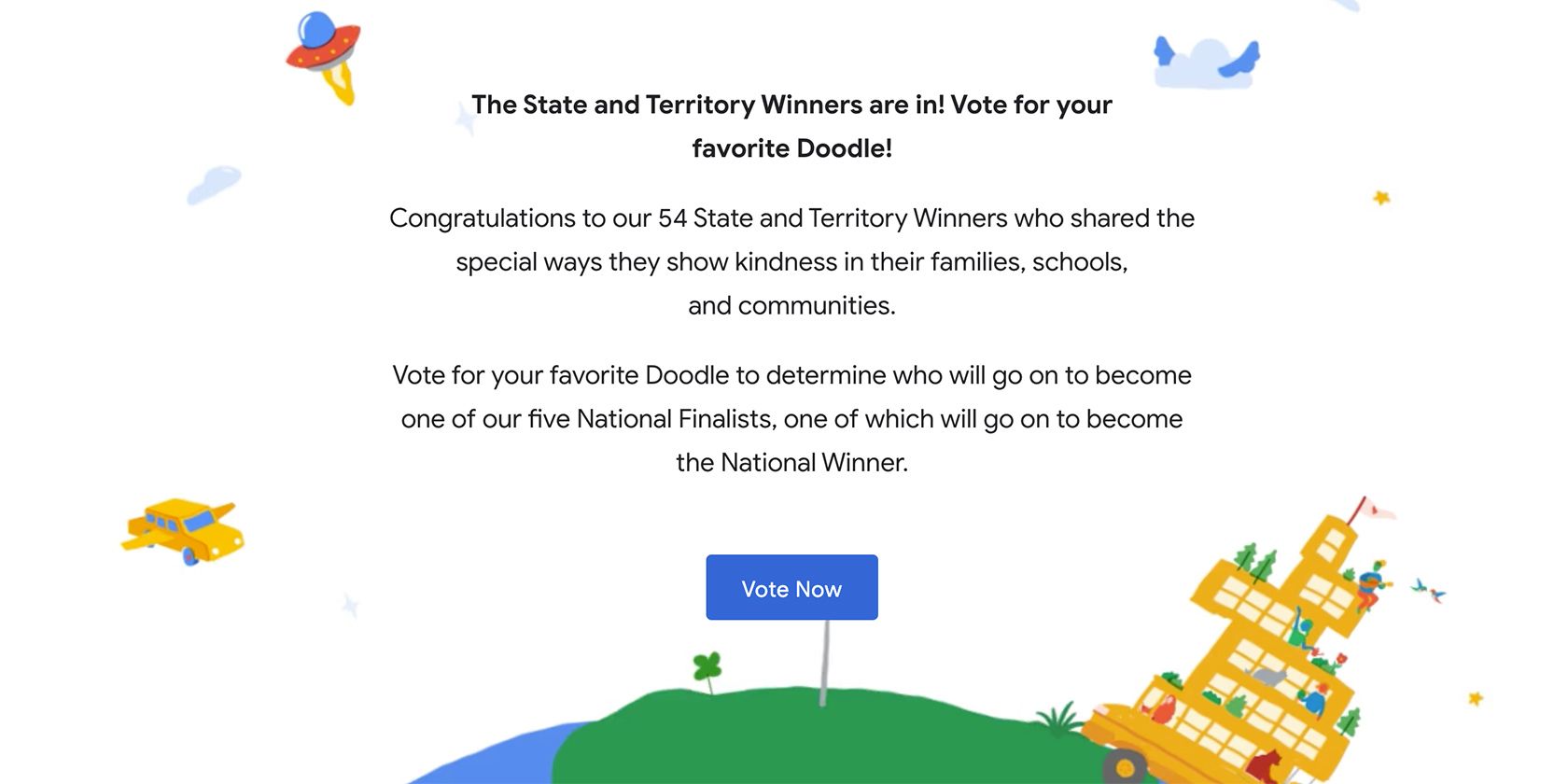
Congratulations to our 54 State and Territory Winners who shared the special ways they show kindness in their families, schools, and communities.

Vote for your favorite Doodle to determine who will go on to become one of our five National Finalists, one of which will go on to become the National Winner.

It’s a Doodle Party!

Everyone loves the Google Doodle. Outside of the annual contest, Google has all sorts of fun Doodles that pop up all the time. It makes visiting the popular search engine an exciting surprise every single day.

Not only are there actual pieces of art, but there are some amazing Google Doodle games that you can play. Some of these have been truly impressive!

Read the full article: You Can Now Vote for The Doodle for Google 2020 Contest


from MakeUseOf
https://www.makeuseof.com/tag/doodle-for-google-2020/

Telegram Launches One-on-One Encrypted Video Calls

After several years operating as a secure text messaging and voice-only calling app, Telegram has finally added video calling to its roster. This feature is now available to both iOS and Android users, albeit in its alpha stage.

Telegram Rolls Out Secure Video Calling

In a Telegram Blog post, the Telegram team explains that all video calls are secured with end-to-end encryption. This ensures that your video calls are private.

You can check if your call is secure by matching the four emojis that Telegram displays for you and your conversation partner. If the emojis match, your call is protected.

Telegram also notes that you can take extra steps to verify that your app is using encryption:

Our apps for Android and iOS have reproducible builds, so anyone can verify encryption and confirm that their app uses the exact same open-source code that we publish with each update.

And because the video calling feature comes with picture-in-picture mode, you can talk on camera, as well as read and reply to messages at the same time. You can only engage in one-on-one video calls right now, but Telegram plans on adding group video calls in the future.

How to Make a Video Call on Telegram

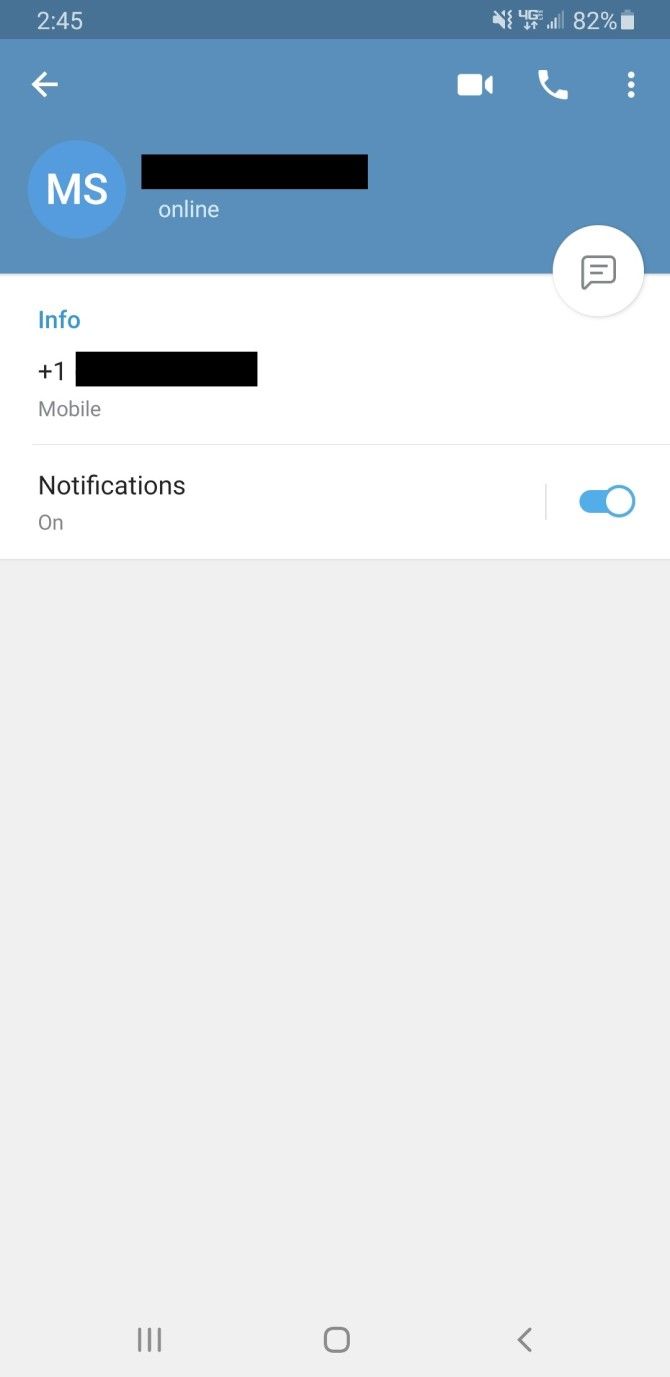
It’s easy to make a video call on Telegram. To get started, open Telegram, and tap on your contact’s photo to access their profile.

If your contact has Telegram’s 7.0 update installed, you should see a video icon on the person’s profile. Select that icon to start a video call.

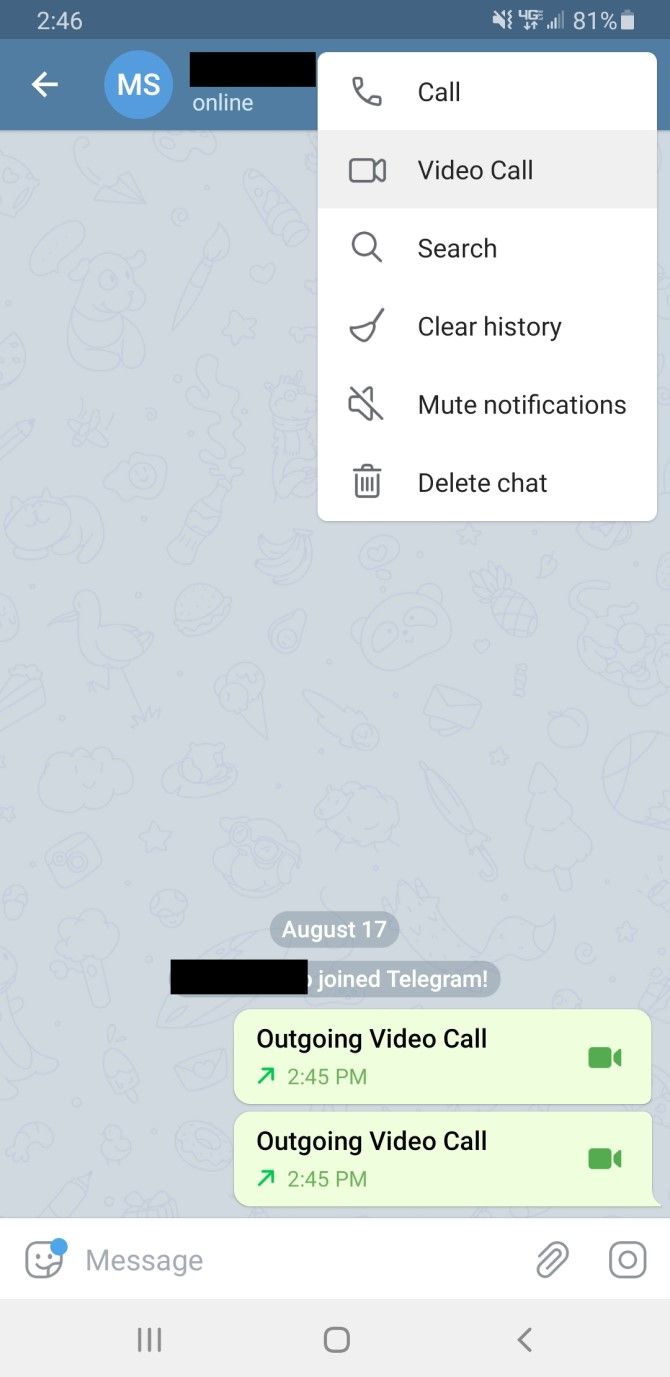
Alternatively, you can also start a video call by going to one of your chats, hitting the three dots in the top-right corner of the screen, and tapping Video Call.

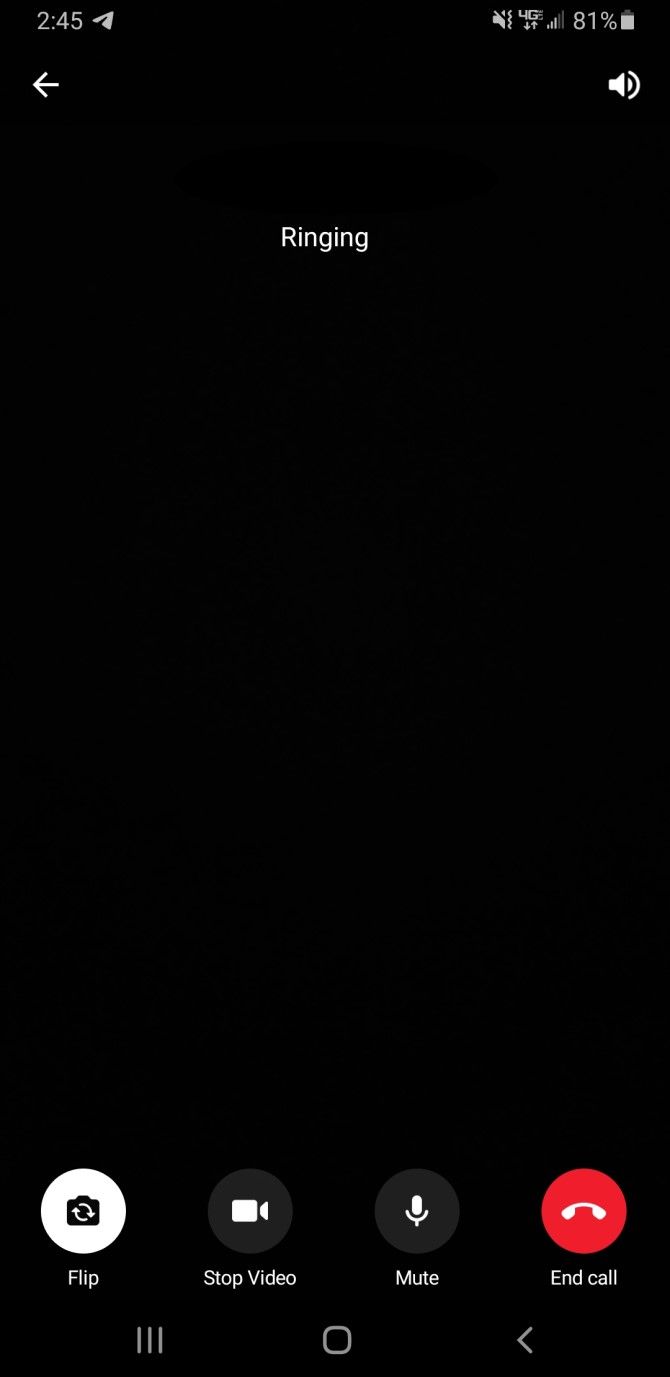
During your conversation, you can quickly switch between voice and video, flip your camera, and mute the call.

Telegram Hops on the Video Calling Bandwagon

Now that Telegram has added video calling to its arsenal of fantastic features, conversations on the app can become even more engaging.

And if you want to get even more out of Telegram, try these useful Telegram features you should be using.

Read the full article: Telegram Launches One-on-One Encrypted Video Calls


from MakeUseOf
https://www.makeuseof.com/tag/telegram-launches-encrypted-video-calls/

Facebook Starts Merging Instagram and Messenger Chats Together

In early 2019, Facebook hinted at its plan to merge Instagram, Messenger, and WhatsApp. The merger would allow for cross-platform messaging between all three apps.

And now, 18 months on, it looks like Facebook is finally putting those plans into action. A small number of users have the option to update Instagram Direct, a sign that a Messenger takeover is coming.

Instagram Introduces Integrated Chat Features

Most users have mixed feelings about the ambitious idea of a cross-platform chat integration between Facebook’s three platforms. Despite this, it looks like Facebook has already begun the Instagram-Messenger merge.

As reported by The Verge, some Instagram users have been receiving a notification when accessing their direct messages (DMs). The prompt reads, “There’s a New Way to Message on Instagram.”

The top of the notification shows both the Instagram and Messenger logos, an obvious sign of the upcoming merge.

The prompt then goes on to describe all of the new features coming to Instagram Direct. According to the note, you can update the app to get a colorful chat interface, more emoji reactions, and a swipe-to-reply touch gesture. And while the notification mentions that you can message users from Facebook, you can’t use that feature just yet.

You can opt to install the new chat system by hitting Update at the bottom of the screen, or you can save it for another day by pressing Not Now. Once installed, you’ll get the new features listed above, and the familiar DM paper airplane icon will get replaced by Messenger’s logo.

When Will the Instagram/Messenger Merge Happen?

Facebook CEO Mark Zuckerberg hopes that Instagram, Messenger, and WhatsApp can eventually operate off of a universal chat platform with end-to-end encryption. However, there’s still no official date on when this will happen.

Over time, more Instagram users will likely see the Instagram update pop up on their phone as well. But in the meantime, you can check out these hidden Facebook Messenger tricks.

Read the full article: Facebook Starts Merging Instagram and Messenger Chats Together


from MakeUseOf
https://www.makeuseof.com/tag/facebook-starts-merging-instagram-messenger-chats/

Microsoft Will Drop Support for Internet Explorer From November

A screenshot of Microsoft Edge

Microsoft recently removed the ability to automatically update drivers via the Device Manager. A decision which hasn’t gone down too well with some. And now, the company has revealed its plans to end support for Internet Explorer 11 and the legacy version of Edge.

What’s Happening With Internet Explorer and Edge?

Microsoft announced this change on the Microsoft Tech Community Blog, saying:

Today, we’re announcing that Microsoft 365 apps and services will no longer support Internet Explorer 11 (IE 11) by this time next year.

Beginning November 30, 2020, the Microsoft Teams web app will no longer support IE 11.
Beginning August 17, 2021, the remaining Microsoft 365 apps and services will no longer support IE 11.

The company goes on to explain that, after these dates, Microsoft 365 won’t work correctly with these browsers. Microsoft 365 will either have diminished capabilities, or it will stop working altogether.

Either way, it’s a sign that Microsoft no longer wants to keep its older browsers alive.

Why Microsoft Is Axing Internet Explorer

If you’ve been keeping tabs on Microsoft Edge, this news shouldn’t come as a surprise to you. After all, Microsoft has been hard at work revamping Microsoft Edge to be a strong competitor for Chrome and Firefox.

Microsoft began its push when it released the Chromium version of Edge. Since then, the company has updated it with all the necessary tools for a modern-day browser. Then, Microsoft made the new version of Edge a core part of Windows 10 after an update.

Because of this, there’s very little reason to continue using Internet Explorer 11 or legacy Edge. As a result, Microsoft is cutting support for these browsers to focus on the Chromium version of Edge.

A New Browser for Windows 10

There’s a good chance that Internet Explorer 11 and the legacy version of Edge no longer has avid supporters. However, if you are one of the rare breed who still uses one or the other, we recommend jumping over to the new Chromium Edge now.

Not only is it a lot better, but Microsoft will continue to support it for the longterm.

If you want some more reasons to make the jump, be sure to read our comparison between the Chromium and legacy versions of Edge.

Read the full article: Microsoft Will Drop Support for Internet Explorer From November


from MakeUseOf
https://www.makeuseof.com/tag/microsoft-drops-support-internet-explorer/

Facebook Starts to Label Ads Connected to Political Outlets

As the 2020 United States presidential election approaches, Facebook has imposed new restrictions on politically-connected news outlets. Facebook now requires these publications to go through a disclaimer process before they post politically-driven ads.

Facebook Moves Towards Political Neutrality

Facebook is taking steps to make the platform more politically neutral. It already lets you turn off all political ads, and it’s now putting more restrictions on political news outlets.

In the past, some political outlets were able to bypass Facebook’s ad authorization process by claiming the news exemption. This exemption allowed certain publications to post ads without having to provide a disclaimer. By skirting around the disclaimer process, political publications could unfairly influence elections.

The social media giant is finally closing this loophole for political outlets. Any news source that Facebook considers “political” will have to take extra steps to publish ads.

Facebook’s Business Help Center defines a political publication as “an organization, company, or other group whose primary purpose is to influence politics, public policy, and/or elections.”

This includes any outlets that have ties to political parties, politicians, PACs, and other political organizations. Not only do all political publications now have to go through the ad authorization process, but their ads need to have a “Paid for by” disclaimer attached.

On the Facebook Journalism Project blog, Facebook explains the goal of its new policy:

Identifying politically connected publishers is a new process for us, and we will learn and adapt as needed, while continuing to make ads on Facebook more transparent and protect the integrity of elections.

And while political news organizations can still register as a news Page, they’re now barred from appearing on the Facebook News feed. Facebook’s new rules also prevent political publications from using news messaging on the WhatsApp Business API and the Messenger Business Platform.

How Facebook Still Poses a Threat to Elections

Despite the fact that Facebook has put new restrictions on political outlets, the social network can still influence politics. To find out more, read our article explaining how your data on Facebook is used to win elections.

Read the full article: Facebook Starts to Label Ads Connected to Political Outlets


from MakeUseOf
https://www.makeuseof.com/tag/facebook-label-ads-connected-to-political-outlets/